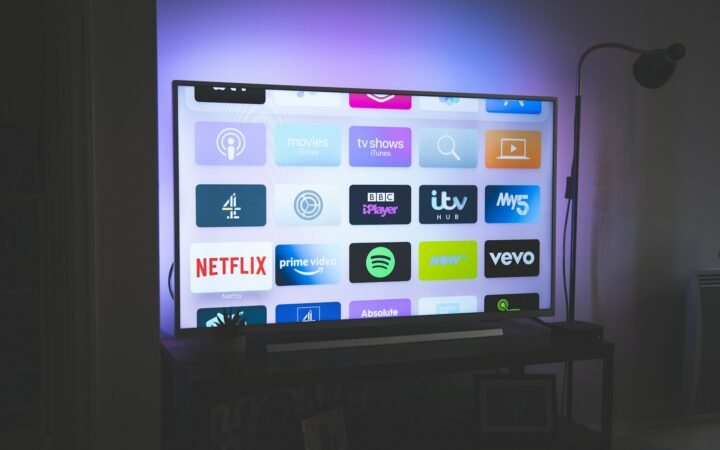
For one 4K stream, Netflix recommends at least 15 Mbps, YouTube about 20 Mbps and Disney+ about 25 Mbps. A household that streams 4K on one TV while others browse or watch HD is usually comfortable with 50 to 100 Mbps. The speed you actually get at the TV matters more than the number on your bill.
- 100% free
- Call direct
- Voice search
- Urdu & English
You bought a 4K TV, paid for the premium streaming plan, and the picture still drops to blurry every evening. In most homes the problem is not the TV or the app. It is the internet connection, or more often, the Wi-Fi between the router and the screen.
This guide explains how much speed each streaming service asks for, how to work out what your whole household needs, and how to fix buffering without automatically paying for a faster plan. Use the free calculator below to get a number for your home.
Recommended speeds by streaming service
Each service publishes its own minimum for different picture qualities. These are per stream, so two people watching at once need roughly double.
| Service | HD / Full HD | 4K Ultra HD |
|---|---|---|
| Netflix | 3 Mbps (720p), 5 Mbps (1080p) | 15 Mbps |
| Prime Video | 5 Mbps | 15 Mbps |
| YouTube | 5 Mbps | 20 Mbps |
| Disney+ | 5 Mbps | 25 Mbps |
| BBC iPlayer | 5 Mbps | 24 Mbps |
Treat these as minimums, not targets. Speeds drop at busy times, other devices share the connection, and Wi-Fi loses a lot of speed through walls. Adding a buffer of around 50 percent on top keeps playback smooth.
Free streaming speed calculator
- Count what runs at the same time on a busy evening, not everything you own.
- Press Calculate to see the minimum and the comfortable speed.
- Compare the result with a speed test taken next to your TV.
The calculator uses 25 Mbps per 4K stream so it covers the most demanding service, 5 Mbps per HD stream, 10 Mbps for each video call or game stream and 2 Mbps for each light device, then adds a 50 percent safety margin.
How to check the speed your TV really gets
- Run a test on the TV itself. The Netflix app has a network check under Get Help, and you can open fast.com in a TV or streaming-stick browser.
- Test at the same time of day you usually watch. Evening speeds are often lower than morning speeds because neighbours are online too.
- Compare with a test next to the router. If the router test is fast and the TV test is slow, the problem is Wi-Fi, not your plan.
- Pause other heavy uses. Large game downloads, cloud backups and system updates can take most of your bandwidth without you noticing.
How to fix buffering without upgrading your plan
- Move the router. Put it high, central and out of cabinets. Walls, mirrors and fish tanks all weaken the signal.
- Use the 5 GHz band. It is faster over short distances than 2.4 GHz. Many routers let you name the bands separately so you can choose.
- Add a mesh system or access point if the TV is far from the router or on another floor.
- Restart the router and the TV. It sounds basic, but it clears memory leaks and stuck connections on older hardware.
- Update the streaming app and TV software. Newer versions often use more efficient video codecs that need less bandwidth for the same picture.
- Check the plan you pay for. Some services only stream 4K on their top tier, so a soft picture may be a plan limit rather than a speed issue.
If you are still choosing hardware, our guide on how to choose a streaming device for your TV explains which sticks and boxes handle 4K and Wi-Fi best.
A quick example
Does picture quality also depend on the TV?
Yes. A fast connection delivers a 4K signal, but how good it looks depends on the panel and how the TV handles lower-resolution content. If you are comparing screens, read our breakdown of OLED vs QLED vs Mini LED and how TV upscaling improves HD shows on a 4K screen.
Wired, Wi-Fi or mesh: which connection suits your TV?
| Option | Best for | Trade-off |
|---|---|---|
| Ethernet cable | TV in the same room as the router | Cable needs routing along walls |
| Wi-Fi on 5 GHz | TV one room away with few walls between | Speed drops quickly with distance |
| Mesh Wi-Fi | Larger homes or TVs on another floor | Higher upfront cost |
| Powerline adapters | Thick walls where Wi-Fi struggles | Results depend on home wiring |
For most people, the cheapest fix that works is the right one. Try a cable or moving the router first, then look at mesh only if the TV is far away.
Common mistakes
- Judging your connection by the router speed test instead of the TV.
- Paying for a faster plan when the real bottleneck is Wi-Fi coverage.
- Forgetting that every person streaming at the same time adds to the total.
- Leaving the TV on the 2.4 GHz band when 5 GHz is available.
- Expecting 4K on a streaming plan that only includes HD.
Frequently asked questions
Is 25 Mbps enough for 4K streaming?
For a single 4K stream with nothing else running, yes. For a household where other people are online at the same time, aim higher, usually 50 Mbps or more.
Does upload speed matter for streaming?
Not for watching. Streaming mainly uses download speed. Upload speed matters for video calls, live streaming and cloud backups.
How much data does 4K streaming use?
A 4K stream can use several gigabytes per hour. If your plan has a data cap, lowering quality to Full HD on smaller screens saves a lot of data.
Is Wi-Fi 6 or Wi-Fi 7 needed for 4K?
No. Older Wi-Fi 5 routers handle 4K well with a good signal. Newer standards help most in busy homes with many devices.