Screenshots are an essential part of modern computing. Whether you want to capture an error message, create tutorials, share information with colleagues, or save something interesting from the internet, screenshots make it easy to record what appears on your screen. If you are using Ubuntu, you will be pleased to know that the system offers several built-in methods to take screenshots quickly and efficiently.
Ubuntu is one of the most popular Linux distributions in the world, known for its simplicity, stability, and powerful tools. The operating system includes multiple ways to capture screenshots, including keyboard shortcuts, graphical tools, command-line utilities, and third-party applications.
This guide will explain in detail how to screenshot in Ubuntu and explore several useful techniques that can improve your productivity.
What Is a Screenshot?
A screenshot is an image capture of what is displayed on your computer screen at a specific moment. Screenshots are widely used for various purposes such as:
- Creating software tutorials
- Reporting bugs or technical issues
- Saving online receipts or confirmations
- Sharing visual information with others
- Documenting important steps in a process
Ubuntu makes screenshot capture easy by providing several built-in options that work instantly without requiring additional software.
Method 1: Using Keyboard Shortcuts
Keyboard shortcuts are the fastest and easiest way to take screenshots in Ubuntu. These shortcuts are already configured in the system and can be used at any time.
Capture the Entire Screen
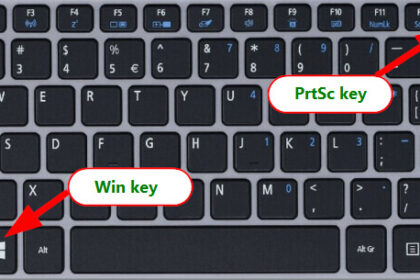
To capture the full screen, simply press the Print Screen (PrtSc) key on your keyboard.
When you press this key:
- Ubuntu captures everything visible on your screen
- The screenshot is automatically saved
- The image is stored in the Pictures folder
The file name usually includes the date and time when the screenshot was taken.
This method is perfect when you want to capture the entire desktop, including all open windows and panels.
Capture the Active Window
Sometimes you may only want to capture the currently active application instead of the entire screen.
To do this, press:
Alt + Print Screen
This shortcut captures only the window you are currently using. For example, if you are working in a web browser or document editor, this command will capture that window without including the rest of the desktop.
This helps keep your screenshots clean and focused.
Capture a Selected Area
In many cases, you may only want to capture a specific portion of your screen.
To do this, press:
Shift + Print Screen
After pressing the keys:
- Your cursor will change into a crosshair.
- Click and drag the mouse over the area you want to capture.
- Release the mouse button.
Ubuntu will save the selected portion as a screenshot in your Pictures folder.
This method is useful when creating guides or highlighting a specific part of a webpage or application.
Method 2: Using the Built-In Screenshot Tool
Ubuntu also includes a graphical screenshot application that provides additional options and controls.
To open the screenshot tool:
- Press the Super key (Windows key).
- Type Screenshot in the search bar.
- Click on the Screenshot application.
This built-in utility allows you to choose from several screenshot modes:
- Capture the entire screen
- Capture the current window
- Capture a selected area
It also gives you the ability to delay the screenshot, which can be helpful in certain situations.
Taking Delayed Screenshots
Sometimes you may need to capture something that disappears quickly, such as a dropdown menu, tooltip, or popup window.
The Ubuntu screenshot tool includes a delay feature that solves this problem.
Steps:
- Open the screenshot tool.
- Choose the type of screenshot you want.
- Set a delay time (for example, 5 or 10 seconds).
- Click Take Screenshot.
After the delay, Ubuntu automatically captures the screen.
This feature is particularly helpful for creating instructional screenshots.
Method 3: Using the Command Line
Ubuntu is well known for its powerful terminal environment. Advanced users often prefer using terminal commands to perform tasks quickly.
To take a screenshot from the command line, open the terminal and run:
This command captures the entire screen.
Ubuntu uses GNOME as its default desktop environment, and the gnome-screenshot utility is included with it.
Useful Command Options
The gnome-screenshot command supports several options.
Capture a specific window:
Capture a selected area:
Add a delay before capturing:
This command waits five seconds before taking the screenshot.
These options are useful for automation scripts or advanced workflows.
Method 4: Copying Screenshots to Clipboard
Ubuntu also allows you to capture screenshots directly to the clipboard instead of saving them as files.
This is useful when you want to paste the screenshot into another application immediately.
Use the following shortcuts:
- Ctrl + Print Screen – Copy entire screen to clipboard
- Ctrl + Shift + Print Screen – Copy selected area
- Ctrl + Alt + Print Screen – Copy active window
After capturing the screenshot, you can paste it into applications like messaging apps, documents, or image editors by pressing Ctrl + V.
Method 5: Using Third-Party Screenshot Tools
While Ubuntu’s built-in tools are powerful, some users prefer additional features such as editing, annotation, and sharing.
Several third-party screenshot tools are available for Linux.
Flameshot
One of the most popular screenshot tools for Linux is Flameshot.
Flameshot offers many advanced features, including:
- Drawing arrows and shapes
- Highlighting important areas
- Blurring sensitive information
- Quick sharing options
To install Flameshot, open the terminal and run:
Once installed, you can launch Flameshot and capture screenshots with powerful editing tools.
Shutter
Another useful screenshot application is Shutter (screenshot tool).
Shutter provides features such as:
- Built-in image editing
- Screenshot effects
- Plugin support
- Automatic image upload
It is a great choice for users who frequently create tutorials or documentation.
Where Ubuntu Saves Screenshots
By default, screenshots taken in Ubuntu are stored in the Pictures directory.
Typical location:
The file names usually follow this format:
You can move or rename the files as needed for better organization.
Editing Screenshots in Ubuntu
After taking a screenshot, you may want to edit it before sharing or saving it.
Ubuntu supports several image editing tools.
Default Image Viewer
The default image viewer allows simple edits such as:
- Rotating images
- Cropping screenshots
- Viewing image details
Advanced Editing
For more advanced editing, users often install tools like GIMP, a powerful open-source image editor.
With GIMP, you can:
- Add annotations
- Apply filters
- Adjust colors and brightness
- Create professional graphics
Tips for Taking Better Screenshots
Here are some helpful tips to improve your screenshot workflow.
Keep Screenshots Organized
Create folders such as:
- Work screenshots
- Tutorials
- Receipts
This makes it easier to find your screenshots later.
Use Annotations
When sharing screenshots in guides or presentations, highlight important elements using arrows, boxes, or text labels.
Annotation tools help readers quickly understand the information.
Protect Sensitive Information
Always blur or hide sensitive details such as:
- Passwords
- Personal data
- Financial information
Many screenshot tools provide built-in blur or pixelation options.
Troubleshooting Screenshot Problems
Occasionally, users may encounter issues when taking screenshots.
Print Screen Key Not Working
Check the keyboard shortcut settings:
- Open Settings
- Go to Keyboard
- Review screenshot shortcuts
You can customize the shortcuts if necessary.
Screenshot Not Appearing
If your screenshot does not appear in the Pictures folder:
- Check file permissions
- Ensure enough disk space is available
- Verify screenshot tool settings
Restarting the system can also resolve minor issues.
Conclusion
Learning how to screenshot in Ubuntu is an essential skill for both beginners and experienced users. Ubuntu provides several convenient methods to capture screenshots, including keyboard shortcuts, built-in utilities, terminal commands, and third-party applications.
Keyboard shortcuts offer the fastest way to take screenshots, while the graphical screenshot tool provides more control and flexibility. Advanced users can rely on command-line tools, and those who need additional features can install applications like Flameshot or Shutter.
By understanding these different methods, you can capture, edit, and share screenshots easily. Whether you are documenting a process, reporting a bug, or creating tutorials, Ubuntu makes screenshot capture simple and efficient.