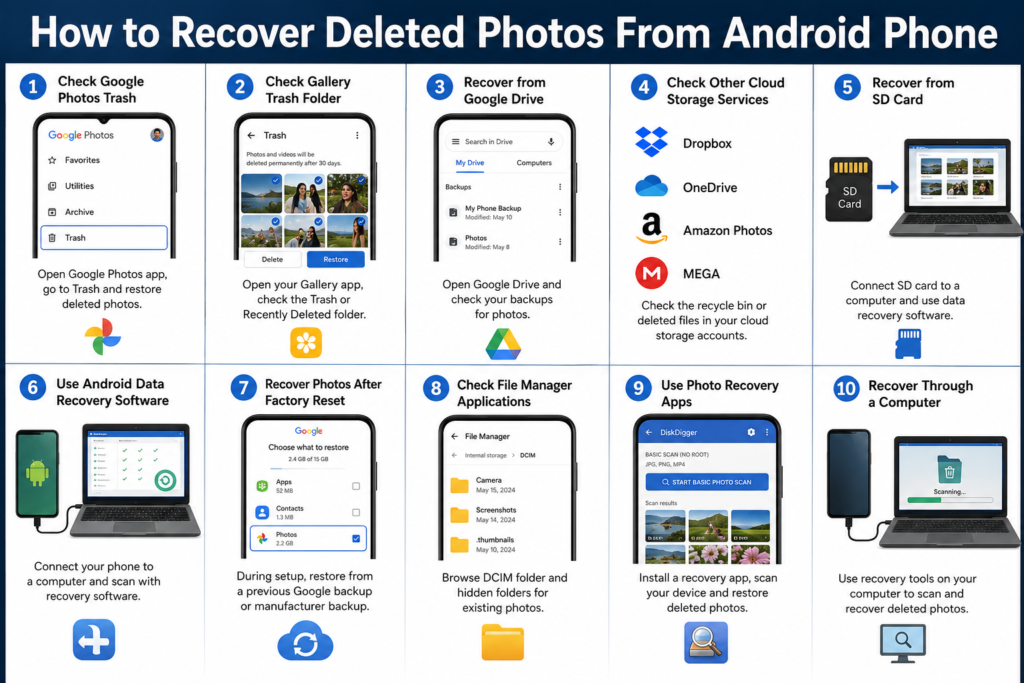
Losing precious photos from your Android phone can be a frustrating experience. Whether the images were accidentally deleted, lost during a software update, removed after a factory reset, or disappeared because of a storage issue, there are several methods you can use to recover them. Fortunately, Android devices offer multiple recovery options, from built-in trash folders to cloud backups and specialized recovery software.
In this comprehensive guide, you’ll learn how to recover deleted photos from an Android phone and how to prevent future photo loss.
Why Photos Get Deleted on Android
Before attempting recovery, it helps to understand why photos disappear in the first place. Common causes include:
- Accidental deletion
- Factory reset
- Software updates gone wrong
- Corrupted SD cards
- Malware or viruses
- Storage failures
- App-related errors
- Formatting internal storage or memory cards
The recovery method that works best depends on how and when the photos were deleted.
Step 1: Check the Google Photos Trash
If you use Google Photos, recovering deleted images is often quick and easy.
How to Recover Photos from Google Photos
- Open the Google Photos app.
- Tap Library.
- Select Trash or Bin.
- Browse for the deleted photos.
- Tap and hold the photos you want to restore.
- Select Restore.
Restored photos will return to your gallery and Google Photos library.
Important Note
Photos remain in Google Photos Trash for up to 60 days before being permanently deleted.
Step 2: Check Your Phone’s Gallery Trash Folder
Many Android manufacturers include a built-in recycle bin.
Samsung Devices
- Open the Gallery app.
- Tap the menu icon.
- Select Trash.
- Choose the photos to recover.
- Tap Restore.
Xiaomi, Oppo, Vivo, and Other Brands
Most modern Android phones provide a similar trash feature within the Gallery app. Look for options labeled:
- Trash
- Recently Deleted
- Recycle Bin
- Bin
Deleted photos are often stored for 30 days before permanent removal.
Step 3: Recover Photos from Google Drive Backup
If your photos were automatically backed up, recovery becomes much easier.
Check Google Drive
- Open the Google Drive app.
- Log in with your Google account.
- Search for photo folders or backup files.
- Download any available images.
You can also visit Google Drive from a web browser to verify backup availability.
Step 4: Recover Photos Using Cloud Storage Services
Many users rely on third-party cloud services for photo storage.
Popular Cloud Backup Services
- Dropbox
- Microsoft OneDrive
- Amazon Photos
- Mega
- Box
Check the recycle bin or deleted files section of these services.
Most cloud platforms retain deleted files for 30–60 days.
Step 5: Recover Photos from an SD Card
If your photos were stored on a memory card, recovery chances may be higher.
What to Do Immediately
- Stop using the SD card.
- Avoid taking new photos.
- Do not save new files to the card.
New data can overwrite deleted photos, making recovery impossible.
Use Recovery Software
Connect the SD card to a computer using a card reader and run recovery software such as:
- Disk Drill
- PhotoRec
- EaseUS Data Recovery Wizard
- Recuva
These tools scan storage sectors and attempt to restore deleted files.
Step 6: Use Android Data Recovery Software
If the deleted photos were stored in internal memory, specialized recovery software may help.
Popular Android Recovery Tools
- Dr.Fone Data Recovery
- Tenorshare UltData
- iMobie PhoneRescue
- EaseUS MobiSaver
- FonePaw Android Data Recovery
Recovery Process
- Install recovery software on a computer.
- Connect your Android phone using a USB cable.
- Enable USB debugging.
- Allow the software to scan your device.
- Preview recoverable photos.
- Save recovered files to your computer.
Success rates vary depending on device model and how long ago the deletion occurred.
Step 7: Recover Photos After a Factory Reset
Factory resets erase device data, but recovery may still be possible if backups exist.
Restore from Google Backup
- Turn on the device.
- Sign in using your Google account.
- During setup, choose Restore from Backup.
- Select the most recent backup.
- Complete the restoration process.
Recover from Manufacturer Backups
Some brands provide proprietary backup systems:
- Samsung Cloud
- Xiaomi Cloud
- Huawei Cloud
Check whether a backup was created before the reset occurred.
Step 8: Check File Manager Applications
Some deleted photos remain accessible through file management apps.
Steps
- Open your File Manager app.
- Browse the DCIM folder.
- Check hidden folders.
- Search for image file extensions:
- JPG
- JPEG
- PNG
- HEIC
Occasionally, photos still exist even when they no longer appear in the Gallery app.
Step 9: Use Photo Recovery Apps
Several Android applications specialize in recovering deleted photos.
Popular Recovery Apps
- DiskDigger
- Dumpster
- DigDeep Image Recovery
- Restore Image
DiskDigger Recovery
- Download DiskDigger from the Play Store.
- Launch the app.
- Start a basic scan.
- Select recoverable images.
- Save them to cloud storage or internal memory.
Rooted devices often achieve better recovery results because the app can access deeper storage areas.
Step 10: Recover Photos Through a Computer
If your phone is recognized by a PC, additional recovery methods become available.
Windows Recovery Tools
- Recuva
- EaseUS Data Recovery
- Stellar Data Recovery
Mac Recovery Tools
- Disk Drill
- Data Rescue
Connect your Android device and scan available storage partitions.
What Affects Recovery Success?
Not every deleted photo can be restored. Several factors determine recovery success.
Recovery Is More Likely When:
- Photos were recently deleted.
- Storage has not been heavily used afterward.
- Cloud backup was enabled.
- SD card storage was used.
Recovery Is Less Likely When:
- Storage has been overwritten.
- Photos were permanently deleted months ago.
- Multiple factory resets occurred.
- Physical storage damage exists.
The sooner you begin recovery efforts, the better your chances.
How Android Deletion Actually Works
Many users assume that deleting a photo immediately erases it forever.
In reality, Android usually marks the storage space as available for future use. The actual image data often remains until new files overwrite that space.
This is why recovery software can sometimes retrieve photos even after deletion.
However, continued phone usage increases the risk of permanent data loss.
Tips to Avoid Losing Photos in the Future
Prevention is always better than recovery. Consider these best practices.
Enable Automatic Backup
Use services such as:
- Google Photos
- OneDrive
- Dropbox
- Amazon Photos
Automatic backups provide protection against accidental deletion.
Use Multiple Backup Locations
Store copies of important photos:
- Cloud storage
- External hard drives
- Personal computers
- NAS devices
Multiple backups greatly reduce risk.
Regularly Export Important Photos
Transfer valuable images to a computer every few weeks.
This provides an additional layer of protection.
Protect Your SD Card
- Avoid sudden removal.
- Use high-quality memory cards.
- Replace aging cards periodically.
Corrupted SD cards are a common source of photo loss.
Keep Software Updated
Android updates often improve storage reliability and security.
Install updates from trusted sources only.
Common Mistakes to Avoid
When trying to recover deleted photos, avoid these actions:
- Taking new photos immediately after deletion
- Installing many new apps
- Formatting storage devices
- Repeatedly resetting the phone
- Saving recovered files back to the same storage location
These actions can overwrite recoverable data.
Frequently Asked Questions
Can permanently deleted photos be recovered?
Sometimes. If the storage space has not been overwritten, recovery software may still retrieve them.
Can I recover photos without a backup?
Yes, recovery software may help, but success rates vary.
Does factory reset permanently erase photos?
A factory reset removes user data, but backups can restore photos. Recovery software may occasionally recover data if it hasn’t been overwritten.
Are photo recovery apps safe?
Reputable apps from trusted developers are generally safe. Always download from official sources.
Can Google Photos recover photos after 60 days?
Once photos are permanently removed from the Trash after 60 days, recovery through Google Photos becomes very difficult unless another backup exists.
Conclusion
Recovering deleted photos from an Android phone is often possible if you act quickly and use the right recovery method. Start by checking Google Photos, Gallery Trash, and cloud backups before moving on to specialized recovery software. If your photos were stored on an SD card, recovery chances are generally even better.
The most effective long-term strategy is maintaining regular backups through cloud services and external storage. With proper backup habits, even accidental deletions or device failures won’t result in the permanent loss of your most valuable memories.