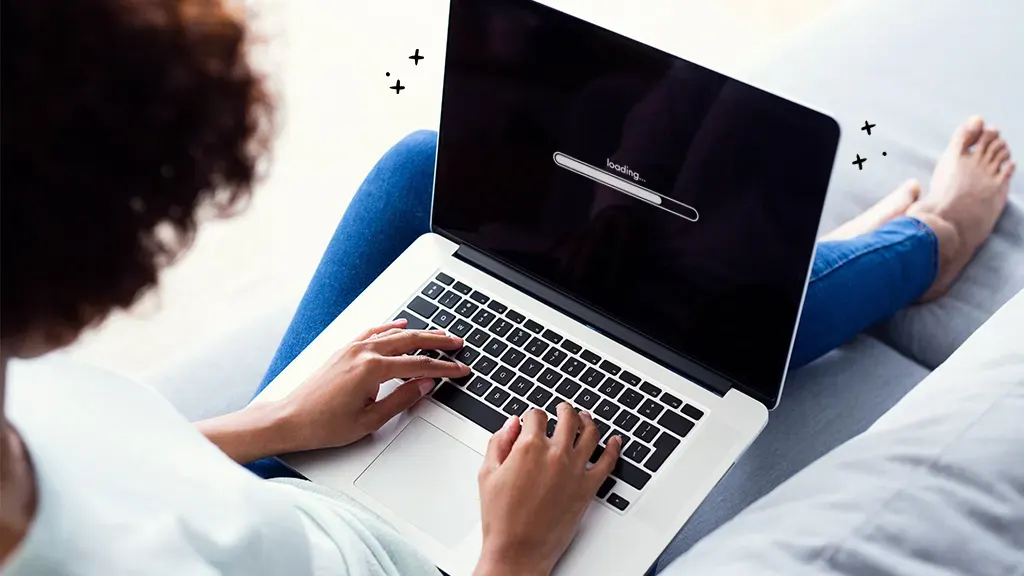
A slow laptop can be incredibly frustrating. Whether you’re trying to work, attend online classes, stream videos, or simply browse the internet, sluggish performance can waste time and reduce productivity. Many laptop users notice that their device becomes slower over time, even if it was fast when first purchased.
The good news is that a slow laptop doesn’t always mean you need to buy a new one. In many cases, simple maintenance and a few upgrades can significantly improve performance. This guide explores the most common reasons why laptops slow down and provides practical solutions to help you speed up your device.
Common Signs of a Slow Laptop
Before troubleshooting, it’s helpful to recognize the symptoms of poor performance:
- Slow startup times
- Programs taking a long time to open
- Frequent freezing or lagging
- Delayed response to clicks and commands
- Slow web browsing
- Excessive fan noise
- High CPU or memory usage
- Long loading times for files and applications
If you’re experiencing one or more of these issues, your laptop may need optimization.
Why Do Laptops Become Slow?
Laptops slow down for various reasons. Some are software-related, while others involve hardware limitations.
Common Causes Include:
- Too many startup programs
- Insufficient RAM
- Low storage space
- Malware or viruses
- Outdated operating system
- Aging hard drive
- Overheating
- Too many background processes
- Fragmented hard drives
- Browser extensions consuming resources
Identifying the cause is the first step toward improving performance.
1. Restart Your Laptop
Many users leave their laptops running for days or weeks without restarting.
A simple restart can:
- Clear temporary files
- End unnecessary processes
- Refresh system memory
- Resolve minor software glitches
If your laptop feels slow, restart it before trying more advanced fixes.
2. Check Startup Programs
Many applications automatically launch when Windows starts.
The more startup programs you have, the slower your laptop boots.
How to Disable Startup Apps
- Press Ctrl + Shift + Esc to open Task Manager.
- Click the Startup Apps tab.
- Review the list.
- Disable unnecessary programs.
Common candidates include:
- Music applications
- Chat software
- Game launchers
- Cloud storage apps you rarely use
Reducing startup apps can noticeably improve boot times.
3. Free Up Storage Space
A nearly full hard drive can dramatically reduce system performance.
Remove Unnecessary Files
Delete:
- Temporary files
- Duplicate files
- Old downloads
- Unused applications
- Large media files you no longer need
Use Storage Cleanup
Windows includes built-in cleanup tools.
- Open Settings.
- Select System.
- Click Storage.
- Enable Storage Sense.
Storage Sense automatically removes unnecessary files and helps maintain free space.
4. Scan for Malware and Viruses
Malware often runs silently in the background while consuming system resources.
Symptoms may include:
- Slow performance
- Random pop-ups
- Browser redirects
- Increased CPU usage
Run a Security Scan
- Open Windows Security.
- Select Virus & Threat Protection.
- Run a Full Scan.
Removing malware can instantly improve system responsiveness.
5. Close Unnecessary Background Applications
Many programs continue running even when not actively used.
Check Resource Usage
- Open Task Manager.
- Click the Processes tab.
- Sort by CPU, Memory, or Disk usage.
- Close programs consuming excessive resources.
Be careful not to end essential Windows processes.
6. Update Windows
Operating system updates often include performance improvements and bug fixes.
Update Windows
- Open Settings.
- Select Windows Update.
- Click Check for Updates.
- Install available updates.
Keeping Windows current helps ensure optimal performance and security.
7. Upgrade from HDD to SSD
One of the most effective upgrades is replacing a traditional hard disk drive (HDD) with a solid-state drive (SSD).
Benefits of SSDs
- Faster boot times
- Faster application loading
- Improved file transfers
- Better overall responsiveness
- Greater durability
Many older laptops experience dramatic speed improvements after upgrading to an SSD.
8. Increase RAM
Random Access Memory (RAM) affects how many tasks your laptop can handle simultaneously.
Signs You Need More RAM
- Frequent freezing
- Slow multitasking
- Browser tabs causing lag
- Memory usage consistently above 80%
For modern usage:
- 8GB RAM is generally sufficient
- 16GB provides smoother multitasking
- 32GB is ideal for professional workloads
Upgrading RAM can significantly improve performance.
9. Limit Browser Extensions
Browser extensions often consume memory and processing power.
Remove Unused Extensions
In Chrome, Edge, or Firefox:
- Open the extensions menu.
- Review installed extensions.
- Disable or remove unnecessary ones.
Fewer extensions generally result in faster browsing.
10. Clear Browser Cache
Web browsers store temporary files that can accumulate over time.
Clear Cache
- Open browser settings.
- Navigate to Privacy and Security.
- Select Clear Browsing Data.
- Remove cached images and files.
This often improves browser responsiveness.
11. Reduce Visual Effects
Windows includes animations and visual effects that can impact performance on older hardware.
Adjust Visual Settings
- Search for Performance Options.
- Open Adjust the Appearance and Performance of Windows.
-
Select:
Adjust for Best Performance
Or manually disable unnecessary visual effects.
This can make older laptops feel faster.
12. Uninstall Unused Programs
Many laptops accumulate software that is rarely used.
Remove Unnecessary Applications
- Open Settings.
- Select Apps.
- Review installed programs.
- Uninstall software you no longer need.
Removing unused applications frees storage and reduces background activity.
13. Prevent Overheating
Heat can significantly slow laptop performance.
When temperatures rise, processors automatically reduce speed to prevent damage.
Common Causes of Overheating
- Dust buildup
- Blocked vents
- Faulty cooling fans
- Soft surfaces restricting airflow
Solutions
- Clean vents regularly
- Use a cooling pad
- Avoid using laptops on beds or cushions
- Ensure adequate ventilation
Lower temperatures help maintain peak performance.
14. Disable Background Apps
Windows allows many apps to run in the background.
Manage Background Applications
- Open Settings.
- Navigate to Apps.
- Review permissions.
- Restrict unnecessary background activity.
This can reduce memory and CPU usage.
15. Check for Driver Updates
Outdated drivers can cause slowdowns and compatibility issues.
Update Drivers
- Open Device Manager.
- Review hardware categories.
- Update critical drivers such as:
- Graphics
- Network adapters
- Chipset drivers
Updated drivers often improve performance and stability.
16. Optimize Power Settings
Many laptops run in power-saving mode by default.
Switch to High Performance
- Open Control Panel.
- Select Power Options.
-
Choose:
High Performance
or
Best Performance
This allows hardware to operate at full speed.
17. Defragment Traditional Hard Drives
If your laptop uses an HDD rather than an SSD, fragmentation can slow file access.
Run Disk Optimization
- Search for Defragment and Optimize Drives.
- Select your hard drive.
- Click Optimize.
Note: SSDs should not be manually defragmented.
18. Check for Hardware Problems
Failing hardware can cause severe performance issues.
Components to Inspect
- Hard drive health
- RAM modules
- Cooling system
- Battery condition
Diagnostic tools can identify potential hardware failures before they become critical.
19. Reset or Reinstall Windows
If performance remains poor despite optimization, Windows may be corrupted.
Reset Windows
- Open Settings.
- Select System.
- Click Recovery.
- Choose Reset This PC.
You can keep personal files while reinstalling Windows.
A fresh installation often restores lost performance.
20. Consider Upgrading Your Laptop
Sometimes hardware limitations cannot be overcome through optimization alone.
If your laptop is more than five to seven years old and struggles with modern software, upgrading may be the most practical solution.
Consider a New Laptop If:
- Hardware upgrades are impossible
- Performance remains poor after optimization
- Software requirements exceed hardware capabilities
- Repair costs approach replacement costs
Modern laptops offer significant improvements in speed, battery life, and efficiency.
Best Practices to Keep Your Laptop Fast
To maintain performance over time:
- Restart regularly
- Install updates promptly
- Remove unused software
- Keep storage at least 20% free
- Scan for malware routinely
- Limit startup programs
- Clean hardware periodically
- Use SSD storage when possible
- Monitor system temperatures
Consistent maintenance prevents many common slowdowns.
Conclusion
A slow laptop can be caused by numerous factors, including insufficient storage, outdated hardware, excessive startup programs, malware, overheating, or aging components. Fortunately, many performance issues can be resolved through simple maintenance steps such as freeing storage space, updating software, removing unnecessary applications, and upgrading hardware when necessary.
By identifying the underlying cause and applying the solutions outlined in this guide, you can significantly improve your laptop’s speed and extend its useful lifespan. Whether you own a Windows laptop for work, study, or entertainment, regular optimization can help ensure smooth and efficient performance for years to come.