In today’s connected world, a reliable internet connection is essential for work, education, entertainment, and communication. When your Windows 11 PC suddenly refuses to connect to WiFi, it can be incredibly frustrating. Whether you’re seeing a “Can’t Connect to This Network” message, experiencing constant disconnections, or finding that WiFi networks aren’t appearing at all, there are several ways to troubleshoot and resolve the issue.
This comprehensive guide explains the most common causes of WiFi connectivity problems in Windows 11 and provides step-by-step solutions to help you get back online quickly.
Common Reasons Why WiFi Is Not Connecting on Windows 11
Before diving into fixes, it’s helpful to understand what might be causing the problem. Some common reasons include:
- Disabled WiFi adapter
- Incorrect network password
- Airplane Mode enabled
- Outdated or corrupted network drivers
- Router or modem issues
- Corrupted network settings
- Windows update conflicts
- DNS or IP configuration problems
- Third-party antivirus or VPN interference
- Hardware issues with the wireless adapter
Identifying the root cause can make troubleshooting much easier.
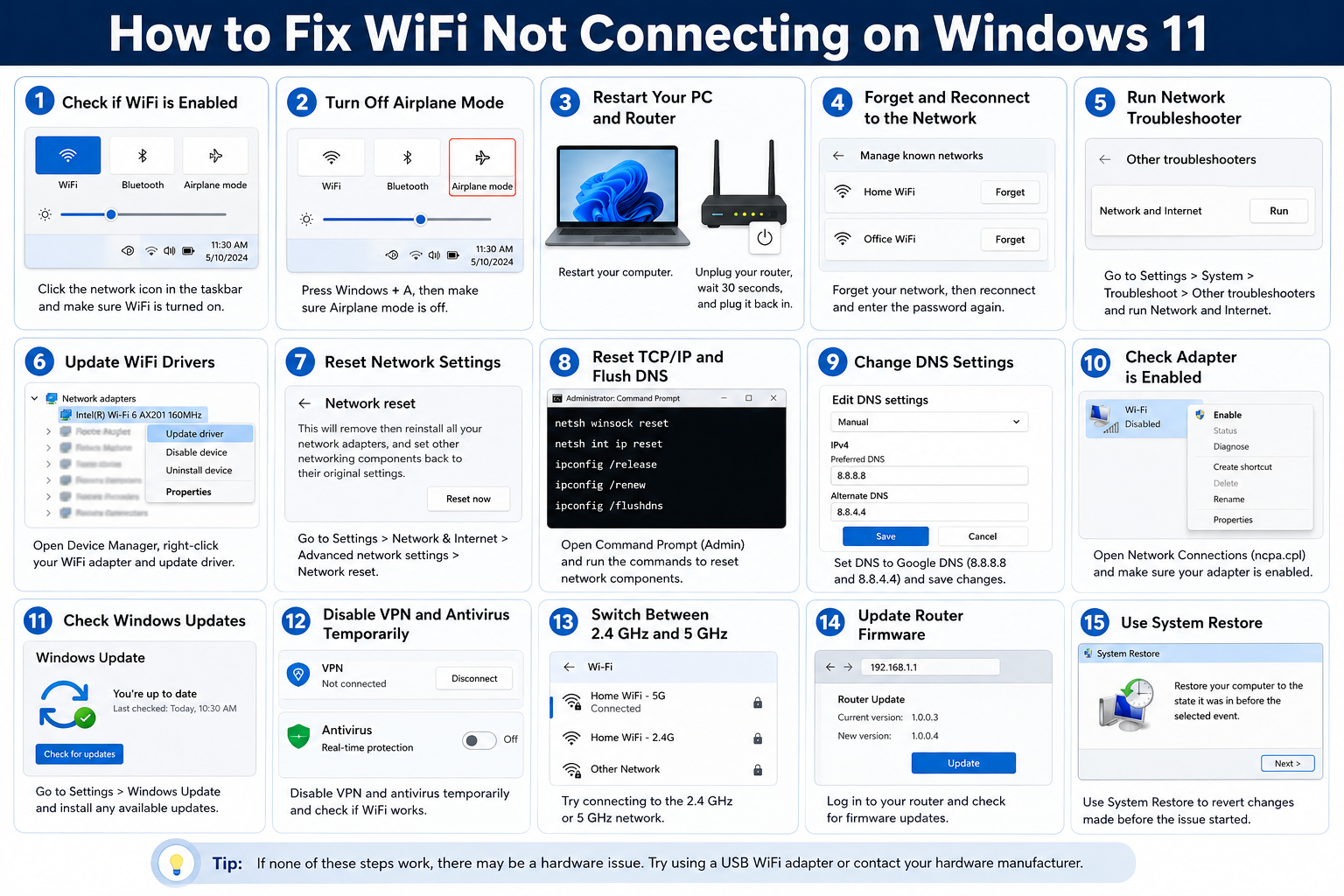
1. Check If WiFi Is Enabled
One of the simplest solutions is verifying that WiFi is actually turned on.
Steps:
- Click the network icon in the taskbar.
- Check whether WiFi is enabled.
- If it is turned off, click the WiFi button to enable it.
- Try reconnecting to your network.
Many users accidentally disable WiFi without realizing it.
2. Turn Off Airplane Mode
Airplane Mode disables all wireless communications, including WiFi.
To Disable Airplane Mode:
- Press Windows + A to open Quick Settings.
- Look for the Airplane Mode icon.
- If it’s enabled, click it to turn it off.
- Wait a few seconds and reconnect to WiFi.
This simple step often resolves connectivity issues immediately.
3. Restart Your Computer and Router
Temporary glitches can affect both Windows and networking hardware.
Restart Windows 11:
- Click the Start menu.
- Select the Power icon.
- Choose Restart.
Restart the Router:
- Unplug the router from power.
- Wait 30 seconds.
- Plug it back in.
- Allow the router to fully reboot.
After both devices restart, check if the connection is restored.
4. Forget and Reconnect to the WiFi Network
Saved network profiles sometimes become corrupted.
To Forget a Network:
- Open Settings.
- Select Network & Internet.
- Click WiFi.
- Choose Manage Known Networks.
- Select your network.
- Click Forget.
Reconnect:
- Click the WiFi icon.
- Select your network.
- Enter the password carefully.
- Click Connect.
This refreshes the network profile and can resolve authentication issues.
5. Run the Network Troubleshooter
Windows 11 includes a built-in tool designed to detect and fix common networking problems.
Steps:
- Open Settings.
- Select System.
- Click Troubleshoot.
- Choose Other Troubleshooters.
- Locate Network and Internet.
- Click Run.
Follow the on-screen instructions and apply any recommended fixes.
6. Update WiFi Drivers
Network adapter drivers are essential for communication between Windows and your wireless hardware.
Update Through Device Manager:
- Press Windows + X.
- Select Device Manager.
- Expand Network Adapters.
- Right-click your WiFi adapter.
- Choose Update Driver.
- Select Search Automatically for Drivers.
Windows will search for and install available updates.
7. Reinstall the Wireless Adapter
If the driver is corrupted, reinstalling it may solve the issue.
Steps:
- Open Device Manager.
- Expand Network Adapters.
- Right-click the WiFi adapter.
- Select Uninstall Device.
- Confirm the removal.
- Restart your PC.
Windows will automatically reinstall the adapter during startup.
8. Reset Network Settings
Network settings can become corrupted over time.
Perform a Network Reset:
- Open Settings.
- Navigate to Network & Internet.
- Select Advanced Network Settings.
- Click Network Reset.
- Choose Reset Now.
- Restart your computer.
This restores networking components to their default configuration.
9. Disable Power Saving for the WiFi Adapter
Windows may turn off the wireless adapter to save battery power.
To Disable Power Saving:
- Open Device Manager.
- Right-click your WiFi adapter.
- Select Properties.
- Open the Power Management tab.
- Uncheck:
- “Allow the computer to turn off this device to save power”
- Click OK.
This prevents Windows from disabling the adapter unexpectedly.
10. Check for Windows Updates
Microsoft frequently releases fixes for network-related bugs.
Update Windows:
- Open Settings.
- Click Windows Update.
- Select Check for Updates.
- Install all available updates.
- Restart your PC.
Keeping Windows current improves overall system stability.
11. Reset TCP/IP and Winsock Settings
Corrupted network protocols can prevent internet access.
Open Command Prompt as Administrator
Run the following commands one by one:
netsh winsock reset
netsh int ip reset
ipconfig /release
ipconfig /renew
ipconfig /flushdns
Restart the computer after completing the commands.
These commands rebuild critical networking components.
12. Change DNS Settings
DNS issues can make it seem like your WiFi isn’t working even when connected.
Use Google DNS:
- Open Settings.
- Navigate to Network & Internet.
- Select WiFi.
- Click your active connection.
- Choose Edit DNS Settings.
- Select Manual.
Enter:
- Preferred DNS: 8.8.8.8
- Alternate DNS: 8.8.4.4
Save the settings and test the connection.
13. Disable VPN Software Temporarily
VPN services occasionally interfere with internet connections.
Test Without VPN:
- Disconnect from your VPN.
- Disable automatic VPN startup.
- Restart your PC.
- Try connecting to WiFi again.
If WiFi works, update or reconfigure your VPN software.
14. Temporarily Disable Antivirus Software
Some antivirus programs include network filtering features that can block connections.
Steps:
- Temporarily disable real-time protection.
- Attempt to connect to WiFi.
- If successful, update or reconfigure the antivirus software.
Remember to re-enable protection after testing.
15. Check Whether the Adapter Is Disabled
The wireless adapter may have been accidentally disabled.
To Verify:
- Press Windows + R.
- Type ncpa.cpl.
- Press Enter.
- Locate your wireless connection.
- If disabled, right-click and select Enable.
This instantly restores the adapter’s functionality.
16. Switch Between 2.4 GHz and 5 GHz Networks
Some devices experience compatibility issues with certain wireless bands.
Try Both Options:
- Connect to the 2.4 GHz network.
- Connect to the 5 GHz network.
The 2.4 GHz band offers greater range, while 5 GHz provides faster speeds.
Testing both can help identify connectivity issues.
17. Check Router Settings
Sometimes the router itself is the source of the problem.
Verify:
- DHCP is enabled.
- MAC filtering is disabled.
- Wireless broadcasting is active.
- Firmware is up to date.
Consult your router’s manual for instructions specific to your model.
18. Boot into Safe Mode with Networking
Safe Mode loads only essential drivers and services.
Steps:
- Open Settings.
- Navigate to Recovery.
- Select Advanced Startup.
- Restart the PC.
- Choose:
- Troubleshoot
- Advanced Options
- Startup Settings
- Restart
- Press 5 for Safe Mode with Networking.
If WiFi works in Safe Mode, a third-party application may be causing the problem.
19. Use System Restore
If WiFi stopped working after a recent change, System Restore can reverse the issue.
Steps:
- Search for “Create a Restore Point.”
- Click System Restore.
- Select a restore point before the problem began.
- Follow the prompts.
Your personal files remain untouched while system settings are restored.
20. Check for Hardware Problems
If none of the software fixes work, hardware failure may be responsible.
Possible Hardware Issues:
- Damaged WiFi card
- Loose internal antenna
- Defective motherboard component
- Router hardware failure
Testing with a USB WiFi adapter can help determine whether the internal adapter is faulty.
Tips to Prevent Future WiFi Issues
To keep your wireless connection running smoothly:
- Update Windows regularly
- Install the latest network drivers
- Restart your router occasionally
- Keep router firmware updated
- Use strong WiFi security settings
- Avoid installing unnecessary networking utilities
- Monitor VPN and firewall configurations
Preventive maintenance reduces the likelihood of future connection problems.
Conclusion
WiFi problems on Windows 11 can arise for many reasons, ranging from simple configuration mistakes to driver corruption and hardware failures. Fortunately, most connectivity issues can be fixed without professional assistance. Start with basic troubleshooting steps such as restarting your devices, checking Airplane Mode, and reconnecting to the network. If those solutions don’t work, move on to updating drivers, resetting network settings, and inspecting router configurations.
By following the methods outlined in this guide, you can diagnose and resolve most WiFi connection issues on Windows 11 and enjoy a stable, reliable internet connection once again.