How to Take Screenshot on a Chromebook

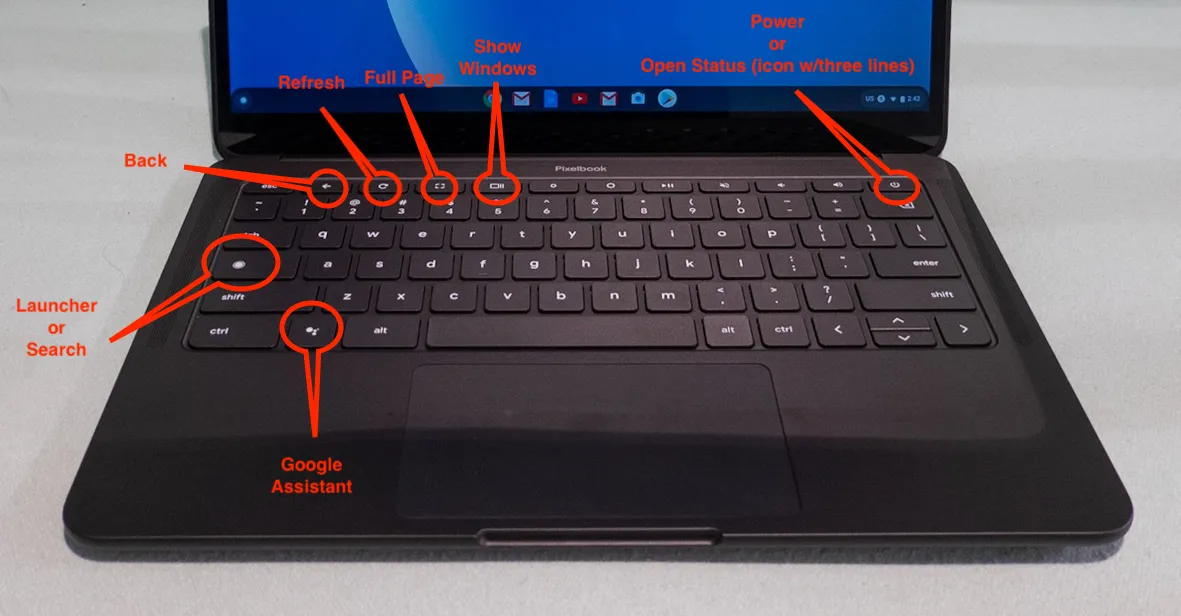
In today’s digital world, knowing how to take screenshot on a Chromebook is an essential skill for students, professionals, teachers, and everyday users. Chromebooks, powered by Chrome OS, offer simple yet powerful built-in tools to capture your screen quickly. Whether you need to save a webpage, share an error message, or grab part of a document, Chrome OS makes how to take screenshot on a Chromebook straightforward with keyboard shortcuts, on-screen tools, and even options for tablets or 2-in-1 devices.
This comprehensive guide covers everything you need to know about how to take screenshot on a Chromebook, including multiple methods, where your captures are saved, editing tips, and advanced features. By the end, you’ll be able to capture screenshots effortlessly on any Chromebook model.
Why Learn How to Take Screenshot on a Chromebook?
Screenshots are incredibly useful for many reasons. You might want to capture online receipts, highlight important information in articles, report bugs to support teams, or share funny memes with friends. Unlike some other operating systems that require third-party apps, Chrome OS has robust native screenshot capabilities that work offline and integrate seamlessly with Google services.
The best part? You don’t need extra software. Chromebooks include the Screen Capture tool, which supports full-screen grabs, partial selections, window captures, and even screen recordings. Mastering how to take screenshot on a Chromebook saves time and boosts productivity.
Method 1: Using Keyboard Shortcuts (The Fastest Way)
The quickest methods rely on your keyboard. Chromebooks use the “Show Windows” key (also called Overview key), which looks like a rectangle with two vertical lines on the right side (or sometimes a camera icon on newer models).
- Full-screen screenshot: Press Ctrl + Show Windows. This captures your entire screen instantly. A small preview thumbnail appears in the bottom-right corner, and the image saves automatically.
- Partial screenshot (selected area): Press Ctrl + Shift + Show Windows. Your cursor turns into a crosshair. Click and drag to select the area you want. Release to capture. You can adjust the selection before confirming.
- Window screenshot (specific app or window): Press Ctrl + Shift + Show Windows, then press the Space bar once the toolbar appears. Your cursor changes to a camera icon—click on any window to capture just that window.
If your Chromebook has a dedicated Screenshot key (often marked with a camera or rectangle icon), simply press it alone to open the Screen Capture toolbar directly—no combinations needed.
These shortcuts are universal across most Chromebook models, making how to take screenshot on a Chromebook consistent whether you have a budget Acer, premium Pixelbook, or Lenovo device.
Method 2: Using the Built-in Screen Capture Tool
For more control or if you prefer a visual interface, use the on-screen toolbar.
- Press Ctrl + Shift + Show Windows to launch the toolbar at the bottom of your screen. (Or click the time in the bottom-right corner to open Quick Settings, then tap Screen capture.)
- In the toolbar, choose Screenshot (instead of Screen record).
- Select one of these options:
- Full screen — Captures everything.
- Partial — Lets you drag a rectangle over the desired area.
- Window — Click on any open window to snap just that.
- Additional settings appear: Toggle on “Include cursor” or adjust delay if needed (though most users skip this).
This method is great when you need precision or want to switch between screenshot and video recording quickly.
Method 3: How to Take Screenshot on a Chromebook Tablet or 2-in-1
Many Chromebooks convert to tablets. The keyboard shortcuts change slightly without a physical keyboard.
- Press the Power button + Volume Down button together for a full-screen capture. This works just like on Android phones or tablets.
- For more options: Press and hold the Power button, then select Screen capture from the menu. Or tap the time in the status bar and choose Screen capture.
If your device has a stylus (like on some Pixel Slate or Lenovo models), you can also tap the pen icon in the shelf and select capture options.
Where Do Screenshots Save on Chromebook?
After capturing, screenshots automatically save to your Downloads folder.
To find them:
- Click the Launcher (circle icon in the bottom-left).
- Open the Files app.
- Look in Downloads — files are named like “Screenshot 2026-02-19 at 13.57.00.png”.
You can also access them via the thumbnail preview that pops up briefly in the corner—click it to open immediately in the editor.
Screenshots are in PNG format by default, offering good quality without huge file sizes.
Editing and Annotating Your Screenshots
Chrome OS includes a basic built-in editor:
- After capturing, click the preview thumbnail.
- Use tools to crop, draw, add text, blur sections, or highlight.
- Save changes or copy to clipboard for pasting into Google Docs, Gmail, etc.
For advanced editing, open the file in the Gallery app or upload to Google Photos for more features.
Screen Recording Bonus Feature
While focusing on how to take screenshot on a Chromebook, note that the same toolbar supports video:
- Press Ctrl + Shift + Show Windows.
- Select Screen record.
- Choose full screen, partial, or audio options (microphone/system sound).
This is perfect for tutorials or demos.
Tips and Troubleshooting
- No sound or notification? Ensure system sounds are on—Chromebooks play a camera shutter sound by default.
- Screenshots not saving? Check storage space in Settings > Storage.
- External keyboard? Use Ctrl + Shift + F5 if there’s no Show Windows key.
- Multiple monitors? Shortcuts capture only the primary screen.
- Clipboard copy? After capturing, press Ctrl + Shift + V in some apps to paste directly.
Practice these methods a few times, and how to take screenshot on a Chromebook will become second nature.
Final Thoughts
Chromebooks prioritize simplicity, and screenshot tools reflect that philosophy. Whether using quick shortcuts like Ctrl + Show Windows or the full toolbar, capturing your screen takes seconds. These features have improved over the years, with better integration in recent Chrome OS updates.
Next time you need to capture something, remember this guide on how to take screenshot on a Chromebook. It’s one of the most handy skills for any Chromebook user.

Please feel free to contact me if you still need help with Business To Mark, Contact us: businesstomark@gmail.com
Related Stories
 Technology
 AI Agents for Small Business: What They Are and How to Use Them in 2026
1 day ago Technology
 Best Budget Laptops of 2026: What Actually Matters Right Now
3 weeks agoThe Real Impact of AI on the Tech Industry: Infrastructure Costs, Job Shifts, and Digital Transformation
September 7, 2026 Technology
 Essential Household Devices That Make Meal Preparation Effortless
September 1, 2026 Technology
 Meta Muse Code AI: Everything You Need to Know About Meta’s New Coding Assistant
August 6, 2026