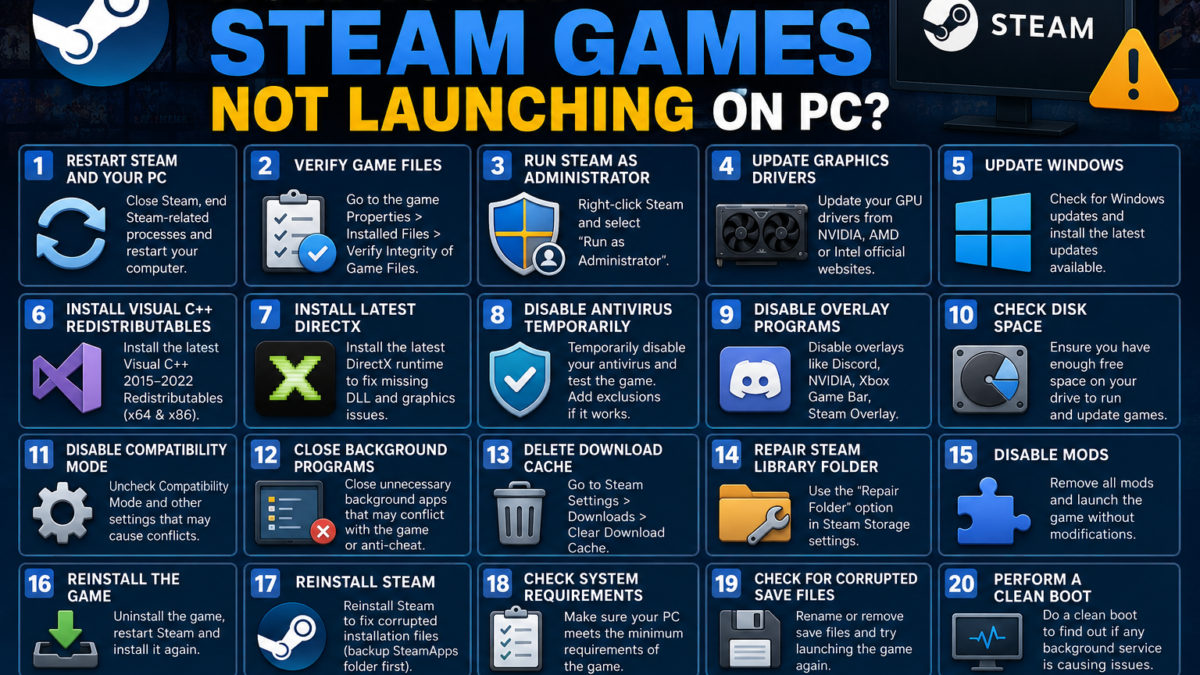
Steam is the world’s most popular gaming platform, giving millions of players access to thousands of games. While Steam is generally reliable, many users occasionally encounter a frustrating issue—Steam games simply refuse to launch. You click the Play button, the game appears to start, and then nothing happens. In some cases, the game crashes immediately or returns to the Steam library without displaying any error message.
Fortunately, most Steam game launch problems are caused by software conflicts, outdated drivers, corrupted files, or incorrect settings. The good news is that these issues can usually be fixed without reinstalling Windows.
This guide explains the most common reasons why Steam games won’t launch and provides step-by-step solutions to get your favorite games running again.
Why Steam Games Won’t Launch
Before jumping into the fixes, it’s helpful to understand what might be causing the problem.
Common causes include:
- Corrupted game files
- Damaged Steam installation
- Outdated graphics drivers
- Missing Visual C++ Redistributables
- DirectX problems
- Antivirus interference
- Background applications causing conflicts
- Windows compatibility issues
- Low disk space
- Corrupted game saves
- Insufficient administrator permissions
The following troubleshooting methods address each of these potential causes.
1. Restart Steam and Your PC
The simplest solution is often the most effective.
Steam processes occasionally get stuck in memory, preventing games from launching correctly.
Steps
- Close Steam completely.
- Open Task Manager.
- End every Steam-related process.
- Restart your computer.
- Launch Steam again.
- Try starting the game.
A fresh restart clears temporary software conflicts and resets background services.
2. Verify Game Files
Corrupted or missing files are among the most common causes of launch failures.
Steam includes a built-in verification tool that scans game files and automatically replaces damaged ones.
How to Verify Files
- Open Steam.
- Go to Library.
- Right-click the game.
- Select Properties.
- Open Installed Files.
- Click Verify Integrity of Game Files.
Steam compares installed files against its servers and downloads replacements if necessary.
This process may take several minutes depending on the game’s size.
3. Restart Steam in Administrator Mode
Some games require elevated permissions to access protected Windows folders.
To Run Steam as Administrator
- Exit Steam.
- Right-click the Steam shortcut.
- Choose Run as Administrator.
- Launch your game.
If this fixes the issue permanently:
- Right-click Steam
- Select Properties
- Open Compatibility
- Check Run this program as administrator
4. Update Your Graphics Drivers
Outdated GPU drivers frequently prevent modern games from launching.
Both NVIDIA, AMD, and Intel regularly release game-ready driver updates.
Updating your graphics drivers can resolve:
- Startup crashes
- Black screens
- DirectX errors
- Missing DLL problems
- Performance issues
Always download drivers directly from your GPU manufacturer’s official website.
5. Update Windows
Windows updates include important security patches, DirectX updates, and compatibility fixes.
To check:
- Open Settings
- Select Windows Update
- Click Check for Updates
- Install everything available
- Restart your computer
Many newer games require the latest Windows updates.
6. Install Visual C++ Redistributables
Many Steam games rely on Microsoft Visual C++ Runtime libraries.
If these files are missing or corrupted, games may fail to start.
Download and install:
- Visual C++ 2015–2022 Redistributable (x64)
- Visual C++ 2015–2022 Redistributable (x86)
After installation, restart your PC.
7. Install the Latest DirectX
Older DirectX components may be missing even on Windows 11.
Many games still require legacy DirectX files.
Installing the latest DirectX runtime often fixes:
- Missing DLL errors
- Launch failures
- Graphics initialization errors
8. Disable Antivirus Temporarily
Some antivirus programs mistakenly block Steam executables.
Common software known to interfere includes:
- Avast
- AVG
- Bitdefender
- McAfee
- Norton
Temporarily disable your antivirus and test the game.
If the game launches successfully, add Steam and your game folder to the antivirus whitelist.
9. Disable Overlay Programs
Overlay software hooks into games and occasionally causes launch failures.
Examples include:
- Discord Overlay
- NVIDIA GeForce Experience Overlay
- MSI Afterburner
- RivaTuner Statistics Server
- Xbox Game Bar
- Steam Overlay
Temporarily disable these overlays before testing.
10. Check Available Disk Space
Steam requires temporary storage while launching and updating games.
Insufficient free space can prevent startup.
Aim to keep at least:
- 20 GB free on the system drive
- 10–20% free storage overall
Delete unnecessary files if needed.
11. Disable Compatibility Mode
Older compatibility settings may conflict with modern Windows versions.
To Check
- Locate the game executable.
- Right-click it.
- Choose Properties.
- Open Compatibility.
- Uncheck:
- Compatibility Mode
- Reduced Color Mode
- Disable Fullscreen Optimizations (unless specifically required)
Apply changes and try launching again.
12. Close Background Programs
Background applications may conflict with anti-cheat software or game launchers.
Close programs such as:
- RGB software
- VPN clients
- Screen recorders
- Browser tabs
- Hardware monitoring tools
- Streaming software
A clean startup environment helps isolate software conflicts.
13. Delete Download Cache
Steam’s download cache sometimes becomes corrupted.
Clear the Cache
- Open Steam.
- Go to Settings.
- Select Downloads.
- Click Clear Download Cache.
- Log back into Steam.
This often fixes strange installation and launch issues.
14. Repair the Steam Library Folder
Corrupted library folders can prevent installed games from launching.
Steps
- Open Steam Settings.
- Select Storage.
- Locate your Steam Library.
- Click the three-dot menu.
- Choose Repair Folder.
Steam will automatically repair the installation.
15. Disable Mods
Game modifications frequently cause crashes after updates.
If your game uses mods:
- Remove all mods.
- Restore original files.
- Verify game integrity.
- Launch without modifications.
If successful, reinstall mods individually.
16. Reinstall the Game
If nothing else works, reinstalling the game may resolve corrupted installation files.
Before uninstalling:
- Back up save files if cloud saves are unavailable.
Then:
- Uninstall the game.
- Restart Steam.
- Download the game again.
- Launch it.
17. Reinstall Steam
A damaged Steam installation can prevent every game from opening.
Fortunately, reinstalling Steam usually preserves installed games.
Steps:
- Back up your SteamApps folder.
- Uninstall Steam.
- Download the latest installer.
- Install Steam.
- Restore SteamApps if necessary.
This refreshes all Steam program files.
18. Check System Requirements
Some games simply won’t launch if your hardware doesn’t meet minimum requirements.
Check:
- RAM
- CPU
- GPU
- Available storage
- Windows version
- DirectX version
Launching unsupported games often results in immediate crashes.
19. Check for Corrupted Save Files
Occasionally, damaged save data prevents games from loading.
Try:
- Renaming the save folder
- Starting a new profile
- Restoring cloud saves
- Verifying game files afterward
Many games recreate missing save folders automatically.
20. Perform a Clean Boot
A clean boot starts Windows with minimal background services.
Steps
- Press Win + R.
- Type msconfig.
- Open Services.
- Hide Microsoft services.
- Disable remaining services.
- Restart Windows.
- Test Steam.
If the game works, enable services one at a time to find the conflicting application.
Advanced Troubleshooting
If you’re still having problems, consider these advanced fixes:
- Update BIOS (only if necessary)
- Reset GPU overclock settings
- Reinstall DirectX
- Reinstall .NET Framework
- Run System File Checker (SFC)
- Use DISM repair commands
- Scan for malware
- Test RAM using Windows Memory Diagnostic
- Check SSD/HDD health
Hardware instability can also cause random launch failures.
Preventing Future Launch Problems
To reduce the chances of Steam games failing to launch in the future:
- Keep Windows updated.
- Update graphics drivers regularly.
- Avoid force-closing Steam during updates.
- Verify game files after crashes.
- Use reputable antivirus software.
- Keep plenty of free disk space.
- Avoid installing unnecessary mods.
- Regularly restart your PC.
- Back up important save files.
Routine maintenance helps keep your gaming library running smoothly.
Frequently Asked Questions
Why does Steam say my game is running but nothing opens?
This usually happens because the game crashes immediately after launch, background processes are stuck, or required files are missing. Restart Steam, verify game files, and update your graphics drivers.
Can antivirus software stop Steam games from launching?
Yes. Some antivirus programs mistakenly quarantine or block game executables. Adding Steam and the game’s installation folder to your antivirus exclusions often resolves the issue.
Will reinstalling Steam delete my games?
Not necessarily. If you back up the SteamApps folder before reinstalling, your installed games can usually be restored without downloading them again.
Why do only certain Steam games fail to launch?
The issue may be specific to that game’s files, mods, save data, or software requirements. Verifying game files and checking for updates usually fixes individual game problems.
Final Thoughts
Steam game launch problems can be frustrating, but they are usually caused by software issues rather than serious hardware failures. In most cases, restarting Steam, verifying game files, updating graphics drivers, clearing the download cache, or reinstalling required Microsoft components will resolve the issue quickly.
If basic troubleshooting doesn’t work, more advanced methods such as repairing the Steam library, disabling background applications, performing a clean boot, or reinstalling Steam can often restore normal functionality. By keeping your system updated and maintaining your gaming environment, you can minimize future launch issues and enjoy uninterrupted gameplay.